What Is a Dual Monitor Desk Layout and How to Set It Up?

Time:2026-10-29 Author:Sophia
0%

A dual monitor desk layout is more than placing two screens side by side. It is a practical arrangement that helps you view both displays comfortably while keeping your keyboard, mouse, and everyday tools within reach. A well-planned setup can reduce awkward head turns and make it easier to switch between tasks. Small details matter.

The best arrangement depends on your work, desk size, and dominant screen. If one monitor is used most, place it directly in front of you and position the second beside it. For equal use, center the screens together and angle them slightly inward. Keep the displays at a comfortable viewing distance, with their upper edges near eye level, then adjust to suit your posture and vision. There is no perfect diagram. Even a neat setup may feel wrong after an hour, so treat the first arrangement as a test.

This guide explains how to set up a dual monitor desk layout, from choosing screen positions to checking desk depth, stands, and cable paths. You will also learn what to adjust when a monitor feels too far away or your neck keeps turning. A tape measure and a few minutes of careful testing can help. The goal is not a showroom desk; it is a setup that feels comfortable during real work.
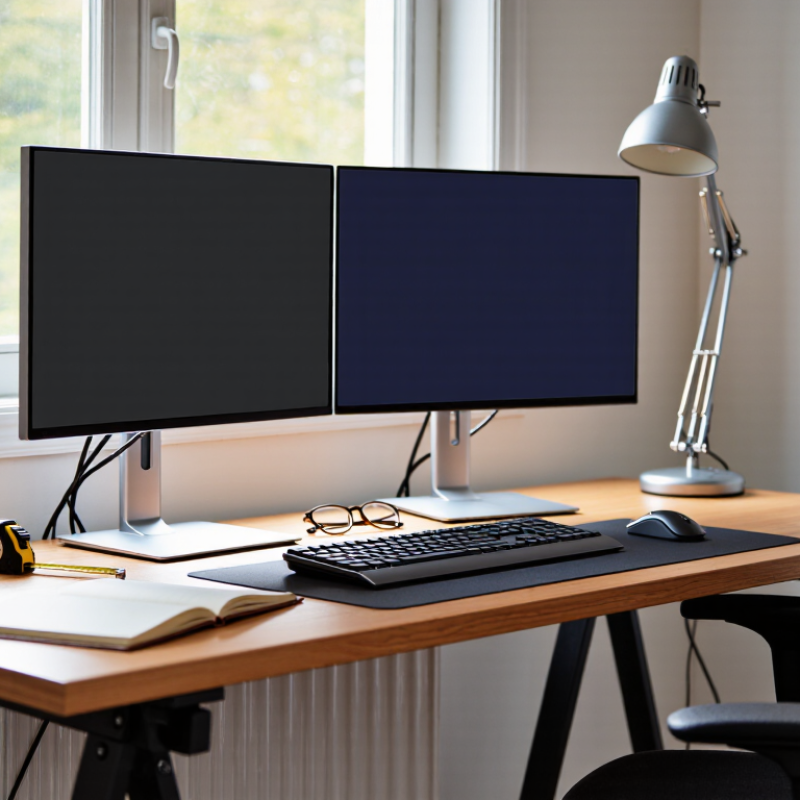
What Is a Dual Monitor Desk Layout and How to Set It Up?

What a Dual Monitor Desk Layout Is

A dual monitor desk layout is an arrangement where two screens share one workspace, giving you room to view separate tasks at the same time. The monitors may sit side by side, or one may be angled toward you. The best position depends on how you use them, not on making the desk look perfectly balanced. That distinction matters.

For a typical setup, place your main screen directly in front of your chair and keep the second screen close beside it. If you use both equally, center the gap between them with your body. Keep the screens about an arm’s length away, then adjust until text feels clear without leaning forward. Aim for the top of each screen to sit near eye level. A slight downward gaze is often more comfortable than tilting your head up. Small adjustments count.

Leave enough desk space for your keyboard and mouse to sit directly in front of you. Check that the monitor edges do not force a repeated neck twist; angle the screens inward if needed. A layout that looks tidy in a photo may feel awkward during a long work session. After using it for a day, notice where your eyes and shoulders naturally turn. You may need to move one screen closer, or lower it slightly. There is no perfect template.

Choose a Desk Layout and Plan Monitor Placement

A dual monitor desk layout works best when each screen has a clear role. Place the display you use most directly in front of your chair. Set the second beside it, angled slightly inward, so you can glance across without twisting your shoulders. Keep the top edges near the same height, and adjust the distance until text feels comfortable to read. Small changes matter.

Measure before moving furniture. A tape measure can show whether both screens fit without crowding your keyboard or pushing your chair too far back. Leave space for a mouse, notes, and a glass of water. If one monitor is used only for occasional reference, place it on the side you turn toward naturally. Keep it simple. Arrange cables along the desk edge, but leave enough slack for height adjustments. Check for window glare at the time of day you usually work; a layout that looks fine in the morning may feel distracting later. Try the setup for a few work sessions, then notice where your eyes and neck travel. It may still feel awkward at first. That is useful feedback, not proof that the desk is wrong. Move one screen a little, retest, and keep the arrangement that feels comfortable during real tasks.

What Is a Dual Monitor Desk Layout and How to Set It Up?

Choose a desk layout based on how you use your screens. If you use both equally, center the point where they meet in front of you. If one is your primary screen, center that monitor and place the other beside it. Angle the screens slightly inward to make viewing comfortable.

Plan Your Monitor Viewing Distance

Keep your eyes about 50–100 cm (20–40 in) from the screen, adjusting for comfortable, clear viewing. This range is based on general U.S. OSHA computer workstation guidance.

Position the Monitors for Comfortable Viewing

Set both screens at the same height, with their top edges at or slightly below eye level. OSHA’s computer workstation guidance recommends keeping a monitor about 20–40 inches from your eyes. That range gives you room to read without leaning forward. Small adjustment.

Place the screen you use most directly in front of you. Set the second beside it, angled slightly inward, so you can glance across without repeatedly turning your neck. If you use both equally, center the join between them in front of your body. The Canadian Centre for Occupational Health and Safety also advises positioning the screen about an arm’s length away, with text large enough to read comfortably.

Check the setup while seated in your usual posture, not just while arranging the desk. Keep your shoulders relaxed and your head level; move the screens rather than twisting your body. A tidy layout can still feel wrong by noon. After an hour, notice whether you lean, squint, or turn often. Adjust the distance, angle, or text size, then check again.

Connect the Displays and Configure Their Settings

A dual-monitor desk works best when both screens connect reliably and sit at comfortable angles. Before plugging anything in, check which display ports your computer supports and whether it can run two screens at once. Use compatible cables, and connect each display directly when possible. If you use a dock or adapter, confirm it supports the screens’ resolution and refresh rate. A loose cable can cause flickering, so press each connector in firmly.

Open your computer’s display settings and choose an extended desktop if you want separate work areas. Set each screen to its recommended resolution, then adjust scaling so text looks similar in size. Drag the display icons to match their physical positions on your desk. This helps the pointer move naturally between them. Keep it simple. Select a primary display for menus and new windows, then test the setup with a document open on one screen and reference material on the other. If the pointer catches at the edge, revisit the alignment; the icons may need a small adjustment. Settings vary by operating system, so check its built-in help if an option is missing. I still find that a few pixels of misalignment can feel oddly distracting.

What Is a Dual Monitor Desk Layout and How to Set It Up? - Connect the Displays and Configure Their Settings

Step Setup Dimension Recommended Setup What to Check
1 Desk layout Place the displays side by side, with their inner edges close together. Keep the screens at a similar height and angle. Arrange them to reduce head turning and keep the gap between screens small.
2 Primary display position Place the display used most often directly in front of your seated position. Put the secondary display beside it. If both displays are used equally, center the join between them in front of you.
3 Viewing distance and height Start at roughly an arm’s length from the screens, then adjust for comfortable reading. Position the top of each screen at or slightly below eye level. Keep your neck relaxed and move the screens closer or farther away as needed.
4 Connect the displays Connect each monitor to a compatible video output on the computer or docking station, then turn on both displays. Confirm that the computer supports the number of displays and the chosen connection types.
5 Display mode Select “Extend” to use the displays as one larger workspace. Choose “Duplicate” only when both screens should show the same content. For a typical two-monitor desk layout, extended desktop mode is the usual choice.
6 Display arrangement In the operating system’s display settings, arrange the on-screen monitor icons to match the physical left-to-right placement. Move the pointer across the shared edge; it should travel in the expected direction.
7 Resolution and scaling Use each display’s recommended or native resolution. Adjust scaling so text and interface elements are comfortable to read. Different monitors may have different native resolutions or scaling settings.
8 Main display Set the display in front of you as the main display if you want the taskbar, menu bar, or new windows to appear there by default. Operating systems provide a separate control for choosing the main display.
9 Refresh rate and orientation Select a refresh rate supported by the display and connection. Use landscape orientation for most side-by-side setups; choose portrait when it better suits the work. Available refresh rates depend on the monitor, computer, and connection.
10 Final comfort check Open the applications you use most and adjust screen angles, brightness, and text size for a comfortable view. Recheck posture and screen alignment after settling into your normal working position.

Adjust the Setup for Ergonomics and Daily Use

A dual-monitor desk should fit your posture and daily tasks, not force your body to adapt. Place the main screen directly in front of you, with its top edge at or slightly below eye level. Keep the second screen beside it, angled inward, so you can glance across without repeatedly twisting your neck. The Canadian Centre for Occupational Health and Safety recommends a viewing distance of about 40–74 cm. Keep it simple. If you use one screen far more often, center that screen rather than the space between both displays. A small alignment error can become an everyday habit.

Set the keyboard and mouse close enough to keep your elbows near your sides and shoulders relaxed. For long calls or reading, switch the main screen’s position when your work pattern changes; don’t leave your neck turned for convenience. A Cochrane review reported that sit-stand desks reduced workplace sitting by about 100 minutes per workday in the short term, though the evidence was low certainty. That supports varying posture, not standing all day. Check glare at different times: a bright window can make one screen harder to read. Adjust one detail, then work for a few days and reassess. Even a careful setup may feel awkward at first. That is useful feedback, not a reason to ignore discomfort.

FAQS

Where should I place the main monitor?

Put it directly in front of your chair. Keep the second screen close beside it.

How far away should the screens be?

Aim for about an arm’s length. A range of 20–40 inches can work; adjust until text feels clear.

How high should the monitors sit?

Keep their top edges near or slightly below eye level. A slight downward gaze may feel more comfortable.

What if I use both screens equally?

Center the gap between them in front of your body. Angle both screens slightly inward.

How can I reduce neck twisting?

Move the screens closer or change their angle. Keep your shoulders relaxed and head level.

How do I make the pointer move naturally between screens?

Arrange the display icons to match the screens’ positions on your desk. A few pixels can feel oddly distracting.

What should I check before connecting two displays?

Check that your computer supports two screens. Use compatible cables, and confirm any dock or adapter supports the screens’ resolution and refresh rate.

What display settings should I adjust?

Choose an extended desktop for separate work areas. Set recommended resolutions, match text sizes, and select a primary display.

How can I tell if the layout needs changing?

Work at your desk for an hour. Notice if you lean, squint, or turn often, then adjust the screens or text size. I still miss small misalignments sometimes.

Conclusion

A dual monitor desk layout uses two displays side by side to make it easier to view multiple tasks, documents, or applications at once. Planning the arrangement starts with choosing a desk layout that leaves enough room for both screens, the keyboard, and other everyday items. Consider where you sit and how you use each monitor so the displays can be placed within a comfortable, easy-to-view area.

To learn how to set up a dual monitor desk layout, position the screens at a comfortable viewing distance, with their tops near eye level and the primary display directly in front of you. Connect both displays to your computer, then configure the display settings to arrange them in the same order as they appear on the desk. Finish by adjusting screen angles, chair position, and frequently used items to reduce unnecessary reaching and turning. Revisit the setup during daily use and make small changes to keep it comfortable and practical.

Sophia

Sophia

Sophia is a dedicated marketing professional with an exceptional depth of knowledge about her company's products and services. With a keen understanding of market trends and customer needs, she crafts insightful blog posts that not only inform but also engage readers, enriching the company’s online......